Repeated status updates appear in approval queues, task lists and admin forms. If the page has supported native dropdowns, Swoopset can copy one chosen value across the matching controls you select. Start with a small range so you can see exactly what changes.
Try the simple version
| Task | Status |
|---|---|
| Website refresh | |
| Customer follow-up | |
| September report | |
| Product photos | |
| Team handover |
This page demonstrates copying a committed value with local JavaScript. It does not run the extension or AI, send the example values to a server, or save your changes.
Use Swoopset on a webpage
Install Swoopset for Chrome, Firefox or Edge. The current downloads use developer installation; each browser page has the steps.
- Open the webpage and right-click one of the dropdowns you want to change. Choose Swoopset… from the browser menu.
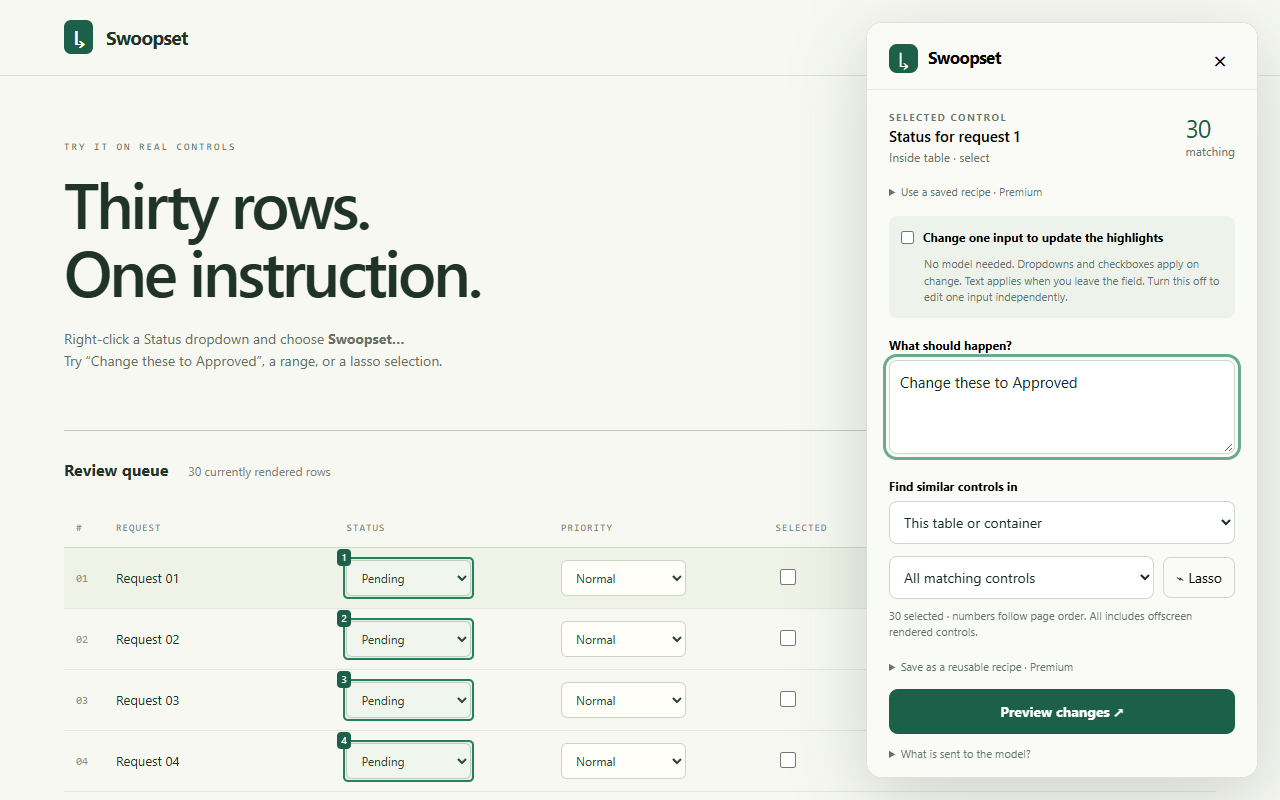
- Check the highlighted controls. Keep the scope at This table or container when you want one column, rather than similar fields elsewhere in the document.
- Choose All matching controls, First… or Range…. For a scattered group, use Lasso to draw around the controls. The selection follows the currently rendered controls in page order.
- With direct editing enabled, change one highlighted dropdown to the desired option. The committed change is copied to the selected dropdowns. This direct action does not require AI and applies immediately.
- Check the resulting values. Undo field changes can restore supported local values while the page session is available.
When to use a preview
If the instruction depends on other row values, use Local AI. For example: Set Status to Approved where Category is Renewals. Open Settings → Open Local AI, download the model once, then return to the table. Enter the instruction and choose Preview changes. Check each old/new value and the target count before applying. AI can misread a request; a preview is your chance to catch it.
For the same option across the entire selection, direct editing is the shorter workflow. An AI preview is useful when you want to inspect the proposed targets before anything changes.
If a dropdown does not change
Confirm that every selected dropdown contains the requested option. A site may use a custom menu that looks like a dropdown but has no supported relationship to its options. Direct editing supports native single-choice dropdowns; multi-selects and custom widgets need a different workflow and may be unsupported.
Paginated or virtualized rows must be loaded first. An application that replaces controls during updates or requires physical input can reject a change. Check the page’s own save state: local undo cannot reliably reverse a website-side save or submission.
Keep practicing
Change multiple dropdowns · Bulk edit text fields · Update table values with Local AI