A shared note is easy to type once and tedious to repeat across a form. Swoopset finds matching text inputs or textareas around the field you choose. Direct editing copies the committed value to your selected fields; it does not merge each row’s existing text with the new note.
Practice copying a note
| Task | Note |
|---|---|
| Website refresh | |
| Customer follow-up | |
| September report | |
| Product photos | |
| Team handover |
This page demonstrates copying a committed value with local JavaScript. It does not run the extension or AI, send the example values to a server, or save your changes.
Copy the same text to your selection
Install Swoopset for Chrome, Firefox or Edge. The current downloads use developer installation; each browser page has the steps.
- Right-click one supported text field or textarea and choose Swoopset….
- Inspect the highlighted fields and their current contents. Use This table or container to keep the change within the intended column.
- Choose all matches, the first few controls, a range, or a lasso selection. Begin with a small selection if the fields already contain different information.
- With direct editing enabled, enter the complete new value in a highlighted field. Leave the field to commit it. The new value is copied to the selected controls immediately; there is no AI preview for this direct action.
- Check the updated fields and the application’s save state. Use Undo field changes if you need to restore supported local values.
Use Local AI for a described change
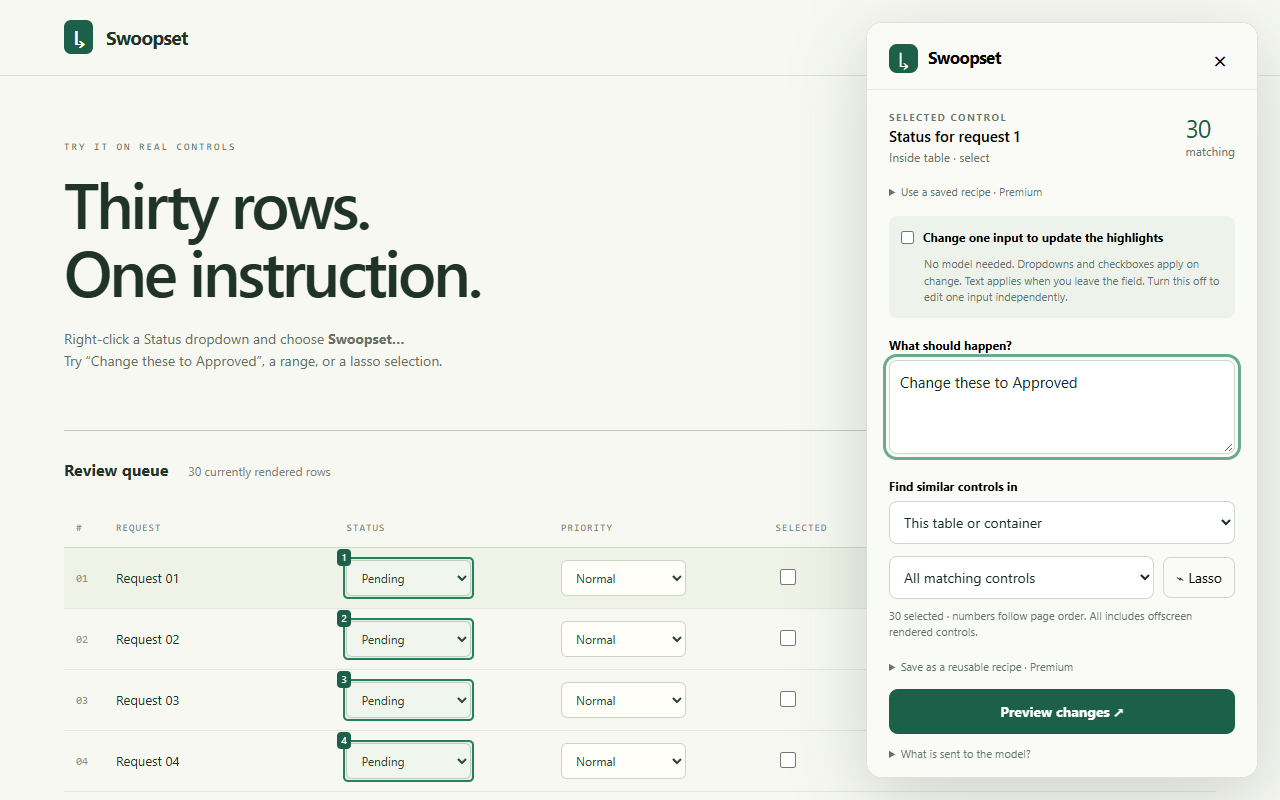
For a change that preserves or transforms existing content, describe the rule clearly instead of copying one replacement value. For example: Replace Pending with Approved in these notes. Avoid a vague instruction such as “fix these” when multiple interpretations are possible.
Set up the included model through Settings → Open Local AI and download it once. Choose Preview changes, then read every proposed old/new value. Check that unrelated wording remains intact and only the requested rows appear. Apply when the preview matches your intention. Local AI processes the selected context on your device; an optional API provider follows that provider’s policies.
The current Local AI field contract supports short values and labels up to 100 characters. For a long note, narrow the task or use direct editing if you intend to replace the whole value. Direct edits support values up to 2,000 characters, subject to the webpage’s own field constraints.
Why a field may be skipped
Native text inputs and textareas are supported. Rich-text editors, contenteditable regions, password fields and file inputs are not direct-edit targets. Similar-looking fields can belong to a different container or have different constraints; check the highlights before editing.
Only rendered controls count. A website may reject synthetic change events, replace inputs during an update, or save as soon as a field changes. Stop if the result differs from your expectation. Local undo restores supported field values; it does not guarantee reversal of remote saves.
Keep practicing
Change multiple dropdowns · Bulk edit text fields · Update table values with Local AI