Some changes depend on the rest of a row: approve renewals, update a quantity, or copy a labeled value into an editable field. Swoopset’s Local AI can use selected native inputs and explicitly labeled adjacent table fields to plan a bounded change. The editable selection stays under your control.
Practice preview, then apply
| Task | Category | Status |
|---|---|---|
| Website refresh | Renewals | |
| Customer follow-up | New business | |
| September report | Renewals | |
| Product photos | Renewals | |
| Team handover | New business |
The example uses a fixed JavaScript rule, with no AI or server request. Real Swoopset previews are generated from your instruction and selected controls; review every proposed value.
Run a reviewed table edit
Install Swoopset for Chrome, Firefox or Edge. The current downloads use developer installation; each browser page has the steps.
- Open Settings → Open Local AI and download the included model once (about 528 MB). Choose GPU when available, or CPU. The setup tab can close after downloading; inference runs in the extension’s background host.
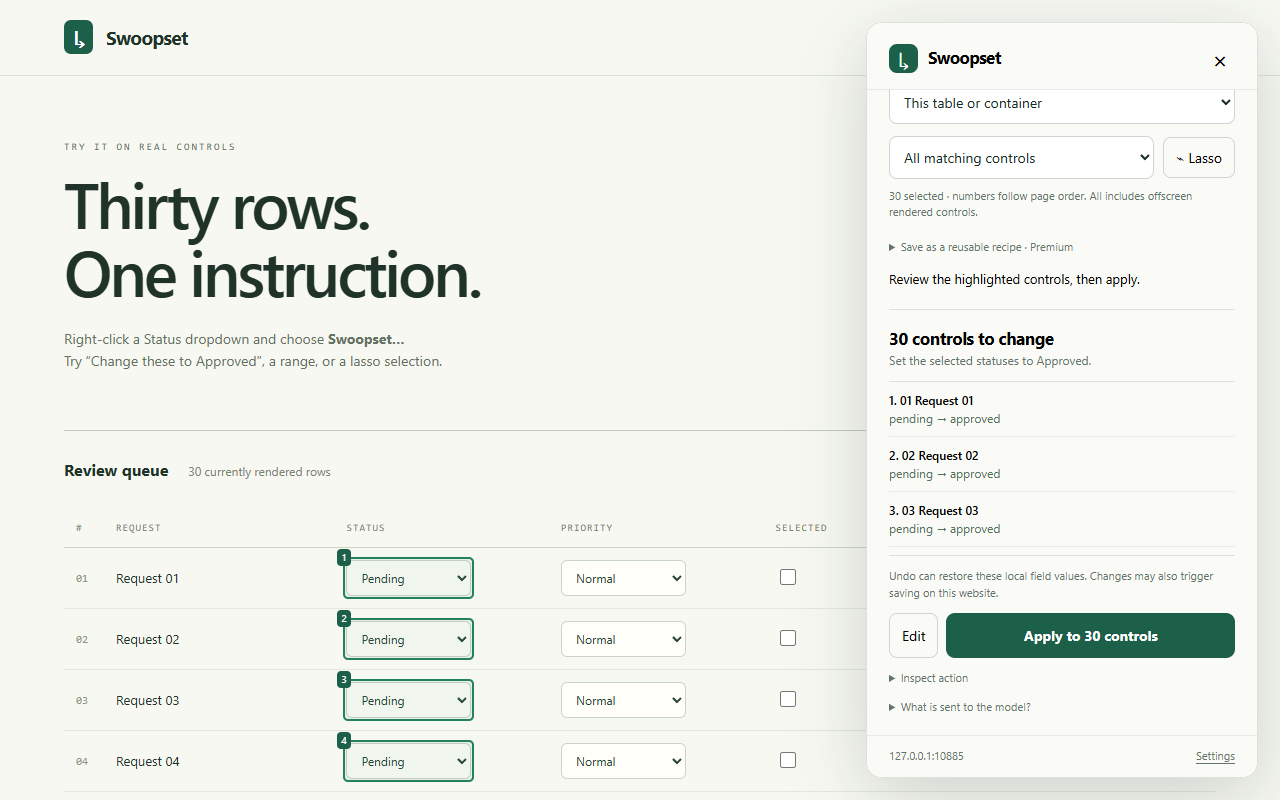
- On the webpage, right-click a native input in the column you want to edit and choose Swoopset…. Keep the scope at This table or container.
- Inspect the highlighted targets. Choose a small range first. Check that the table has clear, consistently shaped headers for any neighboring columns mentioned in your instruction.
- Write a specific rule, such as
Set Status to Approved where Category is Renewals. Name the edit column, desired value and condition. Adjacent fields provide read-only context; they do not become extra edit targets. - Choose Preview changes. Compare the target rows, before values and proposed after values with the table. If a condition is interpreted incorrectly, edit the instruction or narrow the selection and preview again.
- Apply the reviewed changes, inspect the results, and check the website’s own save status. A generated preview does not change the page by itself.
Make the instruction easier to verify
Use column names and values exactly as displayed. Keep the first task to one change and one simple condition. A plain text column stays text: Local AI does not guess that a currency string is a number or a written date is a date. For arithmetic, select a supported numeric input and check the result against its minimum, maximum and step.
Local AI has a bounded context of up to 100 native inputs; short field labels and values must fit its 100-character contract. Complex filters and copying can produce an incorrect preview. The model proposes existing supported field actions and never runs generated JavaScript.
Know the table boundaries
Cells containing ordinary text are read-only context, not editable fields. Hidden, paginated or virtualized rows that have not been rendered are outside the selection. Ambiguous headers, inconsistent dropdown options and unsupported custom widgets can require a narrower request.
If the page or a value used by the preview changes, generate a fresh preview. You can stop planning and undo supported local field changes, but Swoopset does not confirm server-side persistence or reverse every website-side save. For the same value everywhere, use direct dropdown editing or direct text editing.
Keep practicing
Change multiple dropdowns · Bulk edit text fields · Update table values with Local AI